When I jumped to learn BPC BADI ABAP a year ago, I struggled to find an easy tutorial to create a simple BADI which I can understand. I am certain that every consultant willing to embark on this journey had these challenges in the beginning.
Based on the above, I want to give you a quick tutorial on how you can create your first UJ_CUSTOM_LOGIC BPC BADI. If you want to learn BADIs, it is detrimental for the success to create a very simple one gradually increase the complexity.
While the post looks quite long, actually it has primarily screenshots and it shouldn’t take you more than 20-30 minutes make it work for you. The following steps will start with creating the backend components of the BADI and then it will move to the actual code in ABAP and the logic script call.
First, we need to create our BADI components and then jump to writing code. Open SAP Logon and login to Netweaver where BPC/BW is installed.
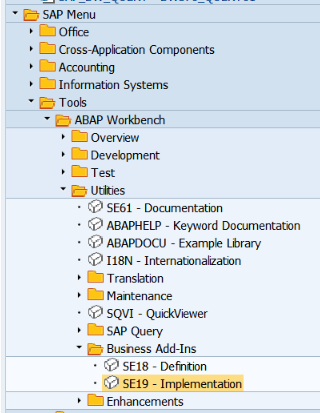
1. Go to SE19 or find the Implementation Menu
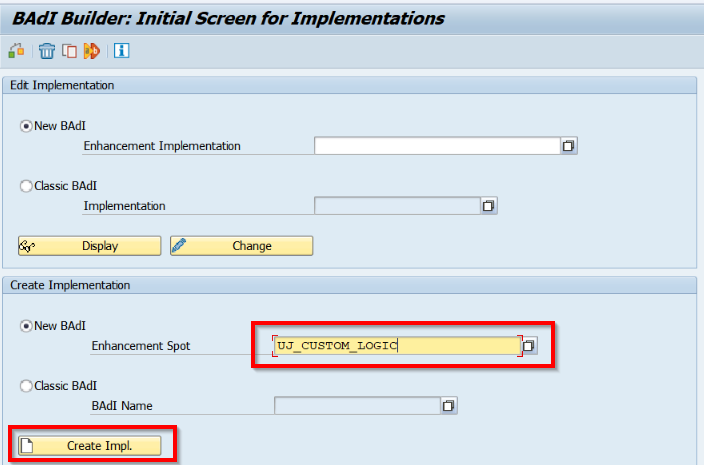
2. Type or select “UJ_CUSTOM_LOGIC” Enhancement spot and click on the “Create Impl.” button
3. Give a name and description the Enhancement Implementation

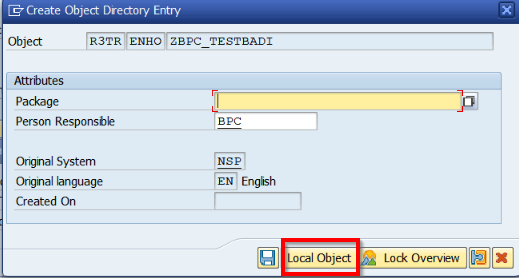
4. Create Object for the new enhancement implementation
Select Local Object to keep it simple. We will not transport this development.
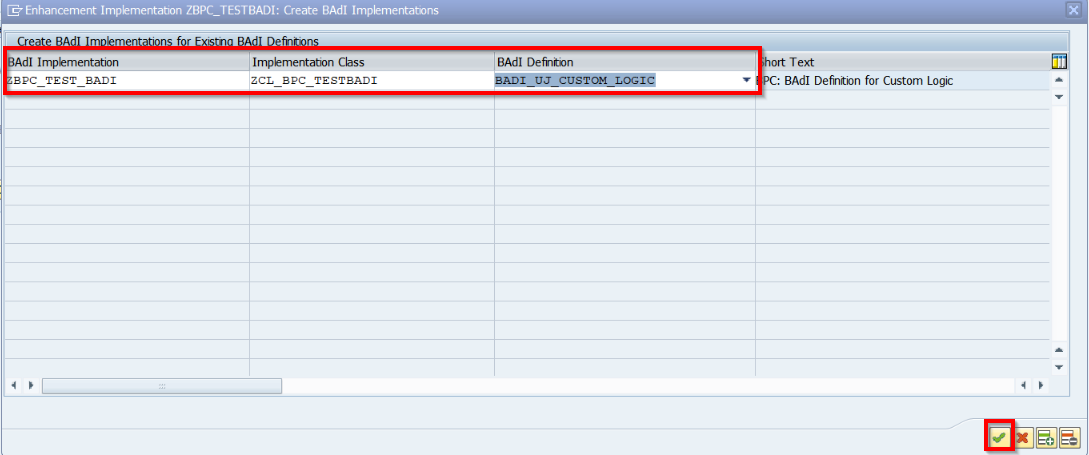
5. Give again a name of the BADI implementation, Implementation class and select the BADI Definition
*Usually, classes start with ZCL*
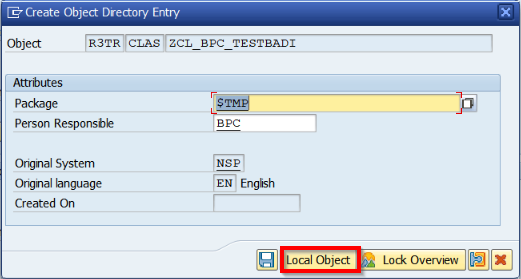
6. Create Object for the new class
Again, for the sake of simplicity, use a local object to keep it simple as we are not going to transport them.
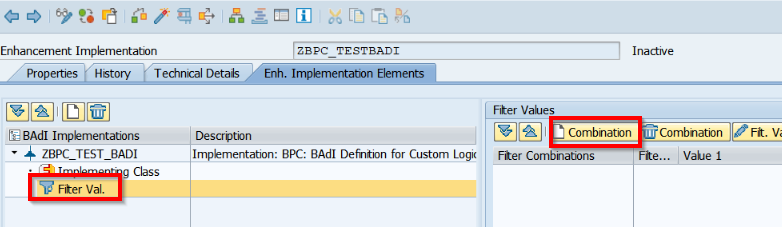
7. Click first on the “Filter Val.” and then on the “Combination” button
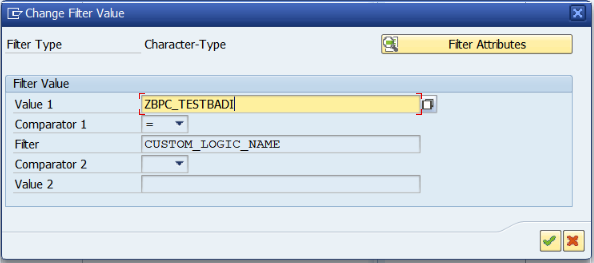
8. Double click on the question marks or use “Filt Val.” button

9. Give a name of the filter value (It is used in the Logic Script to call the BADI implementation)
10. Create implementation Method by going to “Implementation Class” and double click on the “Execute” method
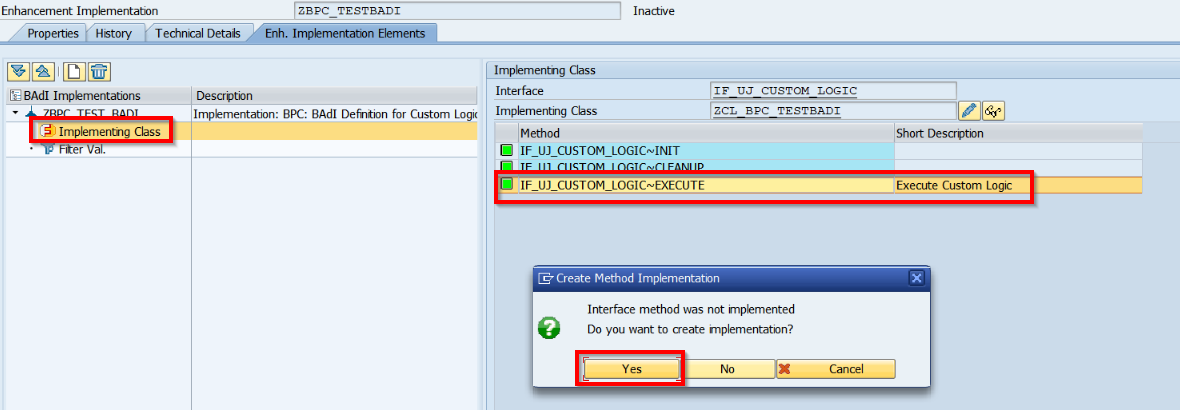
Save the enhancement
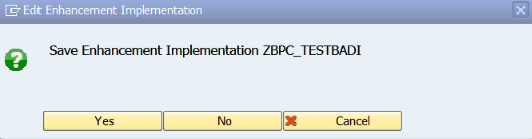
Do the Same for INIT and CLEANUP classes to remove the warnings after that.

11. Activate everything created so far
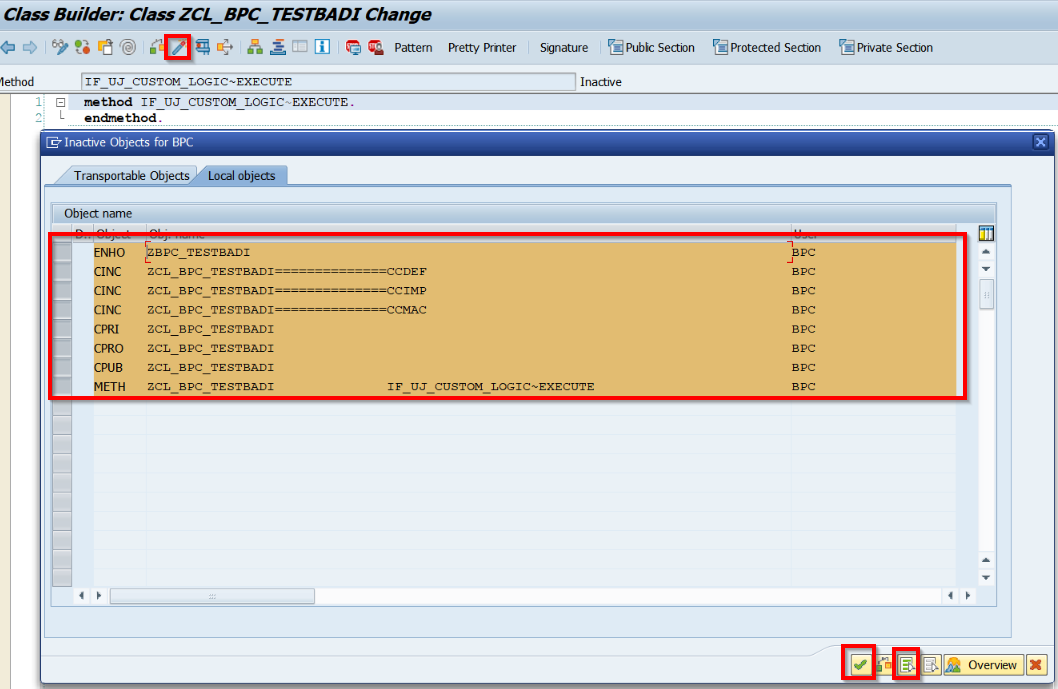
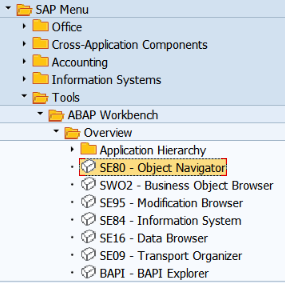
12. Go back all the way to the main menu and start transaction SE80 or use the menu tree
13. Go to Execute Method and open it in edit mode
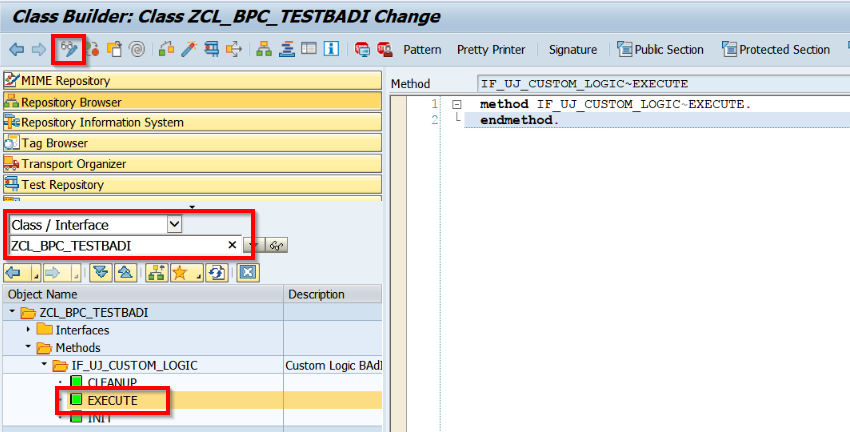
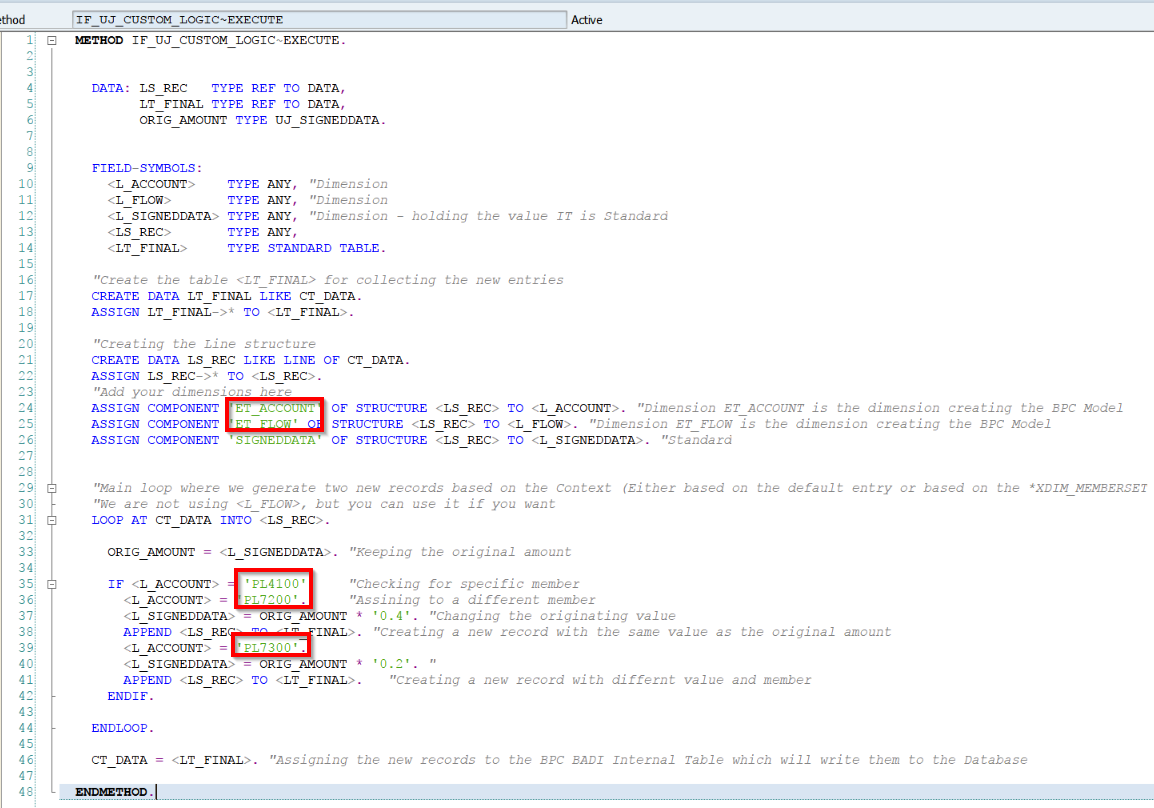
14. Copy and Paste the code below from the file
IF_UJ_CUSTOM_LOGIC-EXECUTE
15. Change the dimensions and the members according to the model and account dimension you have
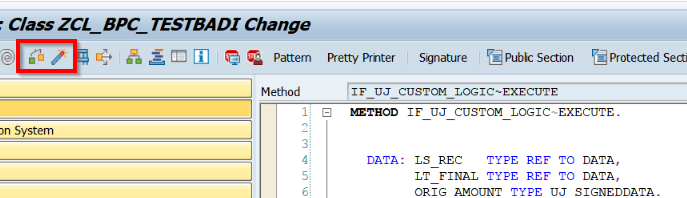
16. Check and activate the code, there shouldn’t be any errors
17. Go to BPC Web admin and place a *START_BADI/*END_BADI in DEFAULT
*START_BADI ZBPC_TESTBADI
  QUERY = ON
  WRITE = ON
*END_BADI
18. Test your Input Template with the code
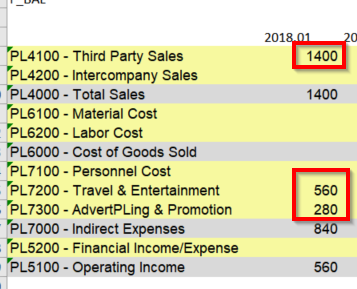
In my case, I am entering 1400 on PL4100 which is in the IF statement and then create two records for accounts PL7200 and PL7300.
Recap
Topics worth covering after this tutorial are related to how to debug the BADI, read master data and read transaction data within the BADI itself. One of the best and straightforward exercises for a new learner is to create a logic for FX translation which involves reading master data (rate types) and reading transactional data from a rates model (FX rates).
I hope you enjoyed the post and by following it you have managed to create a working BPC BADI. Keep in mind that while you can relatively easy start to create and write BADIs, it will take much longer to master it compared to Logic Script or VBA in SAP BPC for example. Please use the comments below and have fun while learning :).