If you have ever set up SAP Logistics Management for a new customer, you've probably encountered the question: “My user can log in, but they see no data — or worse, nothing at all.” Authorization in LGM has a few moving parts, and understanding how they fit together makes all the difference between a smooth go-live and a frustrating troubleshooting session. This post walks through how LGM authorization works, what to configure, and how to diagnose the most common issues.
The Big Picture: Two Layers of Authorization
LGM uses a dual authorization model. There are two independent layers that must both be configured correctly:
- Role Collections — managed in the BTP Cockpit. These control UI visibility: which app tiles, spaces, and integration cards a user sees in SAP Build Work Zone (BWZ).
- AMS Policies — managed in SAP Cloud Identity Services (SCI). These control data access: which records a user can read or change, enforced at every public API endpoint (UI, Public API, SAP Internal).
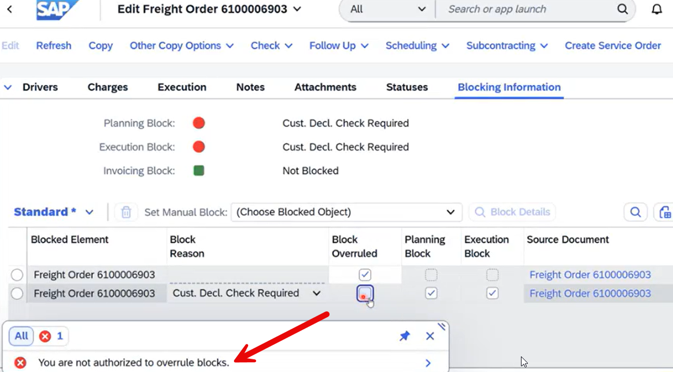
A common mistake is configuring only one of these layers. If a user has a Role Collection but no AMS Policy, they can see the app tiles but get a 403 error when the app tries to load data. If they have an AMS Policy but no Role Collection, the launchpad may show nothing at all. Both layers are required.
Important change as of December 2025: Before November 2025, LGM did not enforce AMS Policies. Customers who onboarded during Beta or RTC only configured Role Collections and everything worked. Starting with the December 2025 release, AMS enforcement is active. If your users suddenly lost access after an upgrade, this is the most likely reason.
The Technology Behind It: SAP Cloud Identity Services
LGM uses SAP Cloud Identity Services (SCI), which bundles two capabilities:
- IAS (Identity Authentication Service) — handles authentication (who you are). It issues tokens, manages federation via SAML or OIDC, and connects your corporate identity provider to the SAP ecosystem.
- AMS (Authorization Management Service) — handles authorization (what you can do). It stores policies and roles, and injects authorization conditions into every data request at runtime.
When a user clicks a tile and LGM loads, a token exchange happens behind the scenes: the BWZ token is exchanged for an LGM token that carries the user's AMS policies. The CAP framework then evaluates those policies on every data access — automatically, without any custom code needed in the application.
How the Request Flow Works
Understanding the flow helps a lot when diagnosing problems:
- The user opens the BWZ site and IAS authenticates them.
- BWZ checks the user's Role Collections and shows (or hides) tiles accordingly.
- The user clicks a tile. LGM loads and a token exchange occurs.
- The CAP service receives the first request, calls the AMS server to fetch the user's roles and attribute restrictions, and caches these for the session.
- Every subsequent data request is filtered automatically: only records matching the user's allowed warehouses and sites are returned.
One practical consequence of step 4: policy changes do not take effect during an active session. If you assign a new policy to a user, they must fully log out (closing all browser tabs) and log back in before the change takes effect. This is a common source of confusion during troubleshooting — “I assigned the policy but nothing changed.”
The Base Policies: Who Gets What
LGM ships with six SAP-delivered base policies that cover the most common user personas:
- Logistics Superuser — full access to all LGM functions except Stock Upload. No instance restrictions. Intended for power users, administrators, and support staff.
- Logistics Clerk — the most commonly used policy for dispatchers, transportation buyers, and warehouse clerks. Covers a broad set of operations: Warehouse Requests, Warehouse Tasks, Stock, Handling Units, Packing, Transportation Requests, Consignments, Pickup/Delivery Documents, and more. Warehousing roles are restricted by the Warehouse attribute; transportation roles (Transportation Requests, Consignments) currently have no instance-based restriction.
- Warehouse Operative — for pickers, packers, and receivers who need to process tasks on the shop floor. Access to Warehouse Task processing, Stock display, Packing, and Handling Units. Restricted to specific warehouses.
- Business Process Specialist — for users responsible for business configuration. Covers business rules, organizational model, shipping processes, consolidation cutoff, pickup schedules, stock reconciliation, business automations, and related master data. Warehousing-related roles are restricted by the Warehouse attribute.
- Administrator — for IT roles managing technical configuration and S/4 integration: replication schedules, system connections, organizational model, and unit of measure. No instance restrictions.
- Stock Upload — a temporary policy for initial inventory uploads. Should be removed once the initial stock is loaded. Restricted by the Warehouse attribute.
For most implementations, the right starting point is: assign Logistics Clerk (with appropriate warehouse restrictions) to your operational users, Warehouse Operative to shop-floor workers, Business Process Specialist to configuration managers, and Administrator to your IT team. Add Logistics Superuser sparingly — only for users who genuinely need unrestricted access. Use Stock Upload only during initial system setup, then revoke it.
Instance Restrictions: Scoping Access by Warehouse or Site
One of the most powerful features of LGM authorization is instance-based access control. Rather than creating separate roles for each warehouse, you assign the same policy (e.g., Logistics Clerk) to all users but restrict each user to the specific warehouses or sites they should see.
This works as follows:
- The AMS Policy defines allowed Warehouse or Site values for the user.
- The CAP framework automatically injects a WHERE condition into every data query — for example,
WHERE warehouse_displayId IN ('WH01', 'WH02'). - Requests for records outside the allowed scope return empty results, not a 403 error. This is intentional: a 403 would reveal that the data exists; empty results are safer.
If a user reports “I can open the app but I don't see any data,” the first thing to check is whether their AMS Policy includes the correct Warehouse or Site attribute values.
Role Collections and the BWZ Launchpad
Role Collections are managed in the BTP Cockpit under your subaccount's Security settings. When LGM is configured as a BWZ Content Provider, six Role Collections are created automatically:
- LGM Logistics Superuser
- LGM Logistics Clerk
- LGM Warehouse Operative
- LGM Business Process Specialist
- LGM Administrator
- LGM Stock Upload
Each Role Collection maps to the corresponding AMS base policy. In general, the Role Collection you assign in BTP should match the AMS Policy you assign in IAS. Mismatches — for example, giving a user the “LGM Logistics Clerk” Role Collection but the “Logistics Superuser” AMS Policy — lead to confusing behavior where the UI shows a limited set of tiles but the backend returns more data than expected.
Note: Role Collections only affect the BWZ launchpad. Users accessing LGM via the DwC launchpad or directly through the API are not subject to Role Collection checks — only AMS Policies apply to them.
Diagnosing Authorization Issues: A Step-by-Step Checklist
When a user reports an access problem, work through these checks in order:
- Can the user authenticate? If they hit a redirect loop or “Identity provider not found,” the IAS Trust configuration in BTP is missing or misconfigured.
- Does the launchpad show tiles? If the launchpad is completely empty, either the BWZ Content Provider hasn't been deployed or no Role Collection has been assigned. If some tiles are missing, the Role Collection is incomplete or the wrong one was assigned.
- Can the user open an app? If clicking a tile results in an error, the Role Collection may be missing the required entry, or the BWZ Content deployment is incomplete.
- Does the app show data? If the app loads but shows no records, the AMS Policy is missing. This is the most common issue for customers who onboarded before December 2025.
- Does the user see the correct subset of data? If data is visible but wrong warehouses or sites appear (or are missing), check the Warehouse/Site attribute values in the AMS Policy.
The Most Common Mistakes
Here are the issues that come up most often in support:
“I only assigned a Role Collection.”
This was sufficient before December 2025. It is no longer sufficient. Both a Role Collection and an AMS Policy are required. If your users lost access after a recent upgrade, assign the matching AMS Policy in IAS.
“I assigned the policy but the user still has the same problem.”
Authorization claims are cached for the session. The user must log out of all browser tabs and log back in before new policy assignments take effect.
“I deleted an IAS group that started with ‘Base -‘.”
Groups prefixed with “Base -” are system-managed by AMS and must not be deleted. They are automatically created for each base policy and link users to their policy entitlements. If one has been deleted, the policy mapping is broken and must be restored by contacting SAP Support.
“Some integration cards show 500 errors.”
If all cards show 500 errors (not 403), the most common cause is browser cookie settings. The “Prevent cross-site tracking” feature in Safari and some other browsers blocks the cross-site cookies that integration cards depend on. Disabling this setting or using a different browser resolves the issue.
“The user can access data through the API but not through the DwC launchpad.”
This typically indicates a broken “user chain” in the DwC integration. Escalate to the development team with the correlation ID from the failing request.
A Practical Setup Checklist
For a new user, the complete configuration requires four steps across three systems:
- BTP Cockpit — Trust Configuration: Ensure IAS is configured as a trusted identity provider in the BTP subaccount.
- BTP Cockpit — Role Collections: Assign the appropriate LGM Role Collection to the user (e.g., “LGM Logistics Clerk”).
- IAS Admin Console — AMS Policy: Assign the matching base policy to the user (e.g., “Logistics Clerk”). Set Warehouse or Site attribute values to restrict their data scope.
- BWZ Site Manager — Content Deployment: Confirm that LGM content has been deployed to the BWZ site.
After completing all four steps, have the user log in fresh. Verify with both a positive test (can they access the data they should?) and a negative test (are they blocked from data they shouldn't see?).
Wrapping Up
LGM authorization has more layers than most SAP applications, but once you understand the model it becomes predictable. The dual layer — Role Collections for UI visibility, AMS Policies for data access — gives you precise control over what each user sees and can do. Instance-based restrictions let you reuse the same base policies across a multi-warehouse environment without creating custom roles for every location.
Key takeaways:
- Both a Role Collection (BTP) and an AMS Policy (IAS) are required since December 2025.
- Policy changes only take effect after a full logout and re-login.
- “No data visible” almost always means the AMS Policy is missing or the Warehouse/Site attribute is not set.
- Never delete IAS groups prefixed with “Base -“.
- For DwC users, only AMS Policies apply — Role Collections are BWZ-only.
Have you run into an authorization scenario in your LGM implementation that doesn't fit neatly into the model described here? Share your experience in the comments — there are likely others who have hit the same edge case, and the community benefits from hearing about it.