Batch Management is used to track and manage materials in batches (lots) that share the same characteristics, such as Shelf life expiration date, Batch status, Country/region of origin, Date of manufacture etc.
This is needed to ensure Traceability, Quality Control, Shelf Life and Expiry Management, Inventory Differentiation, Warehouse and Production operations and also it helps during product recalls and are needed across a variety of Industries like Pharmaceuticals, Food & Beverage, Chemicals, Cosmetics, Medical Devices, Agriculture/Seeds and Manufacturing with lot-controlled materials.
Considering the importance of this feature SAP has introduced it in SAP LGM also. This blog covers an overview of how the functionality is designed as per current development.
We will cover it under following topics
- Batch Creation
- Stock Upload without Purchase Order
- Logistics Processes with Batch Management (Inbound & Outbound)
- Exception – How to handle scenario with missing Batch in S/4 document.
Lets start with the first topic
Batch Creation
- Batch Creation in S/4 system and transfer to LGM
- Activate the Product as Batch Relevant and Define Batch in S/4 with key details like Date of Manufacture / SLED etc.


- Within SAP LGM system using the App – Manage Replication Configuration, create a Replication variant that will be used for replicating batches from S/4 system to LGM


- Using the App – Schedule Batch Replication configure the job to schedule the replication. This can be based on a schedule or even immediate


- Once the Batches are replicated, they can be seen using the App – Display Batches

Let's now look at the Stock upload process without the Purchase Order
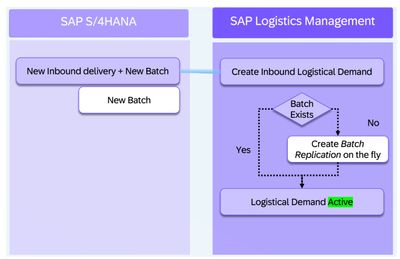
The Process starts with MIGO based GR posting in S/4 system. This creates Delivery in the S/4 system with batch details.


Based on the set up configurations a Logistical Demand is created and the batch details are available at the item level.

The corresponding Inbound Warehouse request also contains the batch details and once the warehousing process is completed the stock is updated back into S/4 system.


Let's now look at the Inbound and Outbound process:
Inbound Delivery based Batch Process
Once the Batch has been created in S/4 system and replicated in LGM, create the PO with the Batch Managed Product. The Batch details can either be provided in the PO or in Delivery.

Create Delivery for the PO with batch details.

On saving the Delivery, Logistical Demand is created in SAP LGM and the Batch Details are also seen in the document item.

The details also flow thru into the Inbound Warehouse request which can then be processed further to complete the warehouse processing.

Outbound process with Batch Management
The Outbound process starts with the creation of a Sales order and the Outbound Delivery within S/4 with a Batch managed product and Batch details.


Once the delivery is distributed it creates a Logistical Demand in SAP LGM. The Batch can be seen here at the item level.

In the above scenario this starts the warehouse processes and the Batch details flow into the Outbound Warehouse Request and also the Packing Work Center as can be seen below:

Once the Packing is completed, we can use the Monitor Handling Units app to view the batch details in the Handling Unit.

Once the Warehouse processes are completed the Goods Issue is posted and the stock details for the Batch Managed Product are updated in the S/4 system.


Now let's look at the LGM system behavior in the case where we have Missing Batch Details in a Delivery with Batch Managed Product
In this scenario we have a Batch Managed Product but have not provided the batch details in S/4 while creating the delivery. The Delivery is distributed to the S/4 system and is not editable in S/4 system.

Since the product is Batch Managed with missing details, the LGM system validates the data and the Logistical Demand is created with an Error Status as shown below.

To correct the issue, this Logistical Demand can be “Cancelled”.


The Cancellation triggers an Integration task to “Decline” the Inbound Delivery in this case which then updates the Delivery in S/4 system.


The system then updates the Good Movement Status to “Completed” with a “Delivered Quantity” as “0”.

We can now create a new Inbound Delivery with the required batch details and then transfer the same to LGM correctly with the Batch details.


That's all on the topic of Batch Management in SAP LGM.
Hope this helps.
For More Details on this topic, please refer to the below Links
What's New Viewer – SAP Logistics Management | SAP Help Portal
Batch Management | SAP Help Portal
Batch Replication | SAP Help Portal
Display Batches | SAP Help Portal
Source link