This blog post is a successive topic of the Payment Lot Data Import via Third-Party Payments for SAP S/4HANA Cloud Public Edition, introducing the process of importing the return files from the third party payment providers.
The Third-Party Payments framework in Contract Accounting can be used not only to import incoming payments, but also to import and process returned payments provided by banks, payment service providers, or other external partners. These files can be converted into the predefined file structure described below.
Instead of creating return postings manually in the Process Return Lots app, you prepare a semicolon-delimited text file containing the returned payments. The framework validates the file, resolves return reasons and posts defaults from customizing and creates ready-to-process return lots in Contract Accounting.
Follow the file structure format described below.
File specification
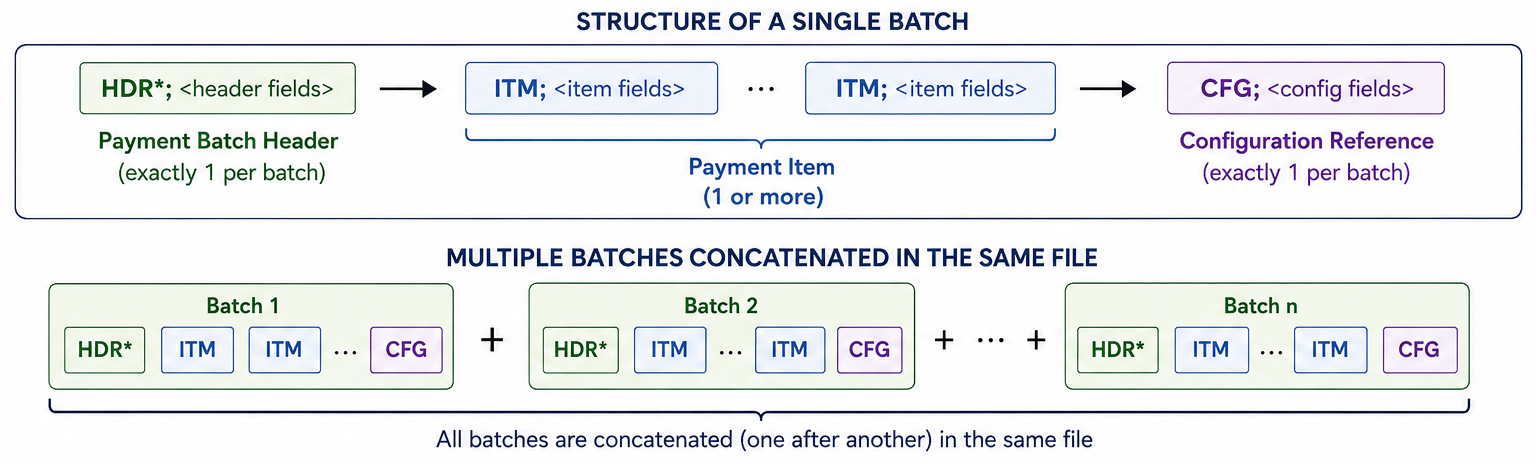
This section specifies the structure of the files. You have to follow the file structure, including the batch header (HDR), batch item(ITM) and configuration reference(CFG).
Batch Header (HDR)
Define the lot-level data. Each return batch header line is for a batch.
| Position | Field Label | Max Length | Mandatory |
| 1 | Record Type (always HDR) | 3 | Yes |
| 2 | Component of Key | 8 | No |
| 3 | Search Term | 40 | No |
| 4 | Currency | 5 | Yes |
| 5 | Posting Date | 10 | Yes |
| 6 | Document Date | 10 | Yes |
| 7 | Value Date | 10 | No |
| 8 | Bank Country/Region Key | 3 | No |
| 9 | Bank Number | 15 | No |
| 10 | Bank Account Number | 18 | No |
| 11 | Specified Debit Total | 18 | No |
| 12 | Specified Credit Total (positive values only) | 18 | No |
| 13 | Specified Number of Items | 6 | No |
Note: Though positions 11-13 are optional, if any field of these is filled, the consistency check between the three fields needs to be conducted – header totals are compared against the actual sum of return amounts and item count of the batch. An error is raised and the batch is rejected if these values do not match. You can leave all three fields empty by using the value 0.00 for Debit and Credit Totals and 0 for Specified Number of Items to skip the consistency check.
Sample Value:
HDR;;Returns May with totals;EUR;15.05.2025;15.05.2025;15.05.2025;DE;10010010;1234567890;1650.50;0.00;2Batch Item (ITM)
The batch item line represents one return within a batch. At least one return batch item is required for a batch.
| Position | Field Label | Max Length | Mandatory |
| 1 | Record Type (always ITM) | 3 | Yes |
| 2 | Selection Category | 1 | Yes |
| 3 | Selection Short Value | 20 | Yes |
| 4 | Return Amount | 16 | Yes |
| 5 | Transaction Currency (falls back to HDR currency if blank) | 5 | No |
| 6 | Return Reason of House Bank | 6 | Yes |
| 7 | Note to Payee In Return | 80 | No |
| 8 | Bank Country/Region Key | 3 | No |
| 9 | Bank Number | 15 | No |
| 10 | Bank Account Number | 18 | No |
| 11 | IBAN | 34 | No |
| 12 | SWIFT/BIC | 11 | No |
| 13 | Profit Center | 10 | No |
| 14 | Charge Amount from Bank 1 | 16 | No |
| 15 | Tax Code for First Bank Charge | 2 | No |
| 16 | Tax Amount of Bank Charge 1 | 16 | No |
| 17 | Charge Amount from Bank 2 | 16 | No |
| 18 | Tax Code for Second Bank Charge | 2 | No |
| 19 | Tax Amount of Bank Charge 2 | 16 | No |
| 20 | Return Charge 1 | 16 | No |
| 21 | Tax Code for First Return Charge | 2 | No |
| 22 | Tax Amount for Return Charge 1 | 16 | No |
| 23 | Return Charge 2 | 16 | No |
| 24 | Tax Code for Second Return Charge | 2 | No |
| 25 | Tax Amount for Return Charge 2 | 16 | No |
Note: Position 6 provides bank-specific return reason codes. You do not need to provide the SAP internal return reason because it is determined by the Assign Return Reasons to House Banks activity (ID: 101919).
Sample values:
ITM;G;1004567892;-100.00;EUR;AMBA;Note To Payee;DE;10010010;1234567890;DE89370400440532013000;COBADEFFXXX;PC1000;50.00;R1;0.50;25.00;R2;4.75Selection Categories
In the position 2 of the ITM structure holds a Selection Category code that identifies how the associated Selection Short Value (position 3) should be interpreted.
| Code | Description |
| B | Document |
| G | Business Partner |
| V | Contract |
| Z | Payment Order |
Example:
ITM;G;100001;500.00;EUR;ACBL;Account closed ← Select by Business PartnerITM;B;9000000001;750.25;EUR;AMBA;Insufficient funds ← Select by Document
ITM;Z;PO-00042;1200.00;EUR;AMBA;Bounced payment order ← Select by Payment Order
Configuration Reference (CFG)
This line identifies the payment recipient in the external system and is used for looking up the default posting parameter from the configuration. One configuration reference line is for a batch.
| Position | Field Label | Max Length | Mandatory |
| 1 | Record Type (always CFG) | 3 | Yes |
| 2 | Payment Recipient Identifier | 30 | Yes |
| 3 | Additional Identification | 10 | No |
Note: Position 2 and 3 are used to retrieve the posting default parameters from the Define return Lot Specification activity (ID: 107256). For more information about this configuration, see the Prerequisite chapter.
Sample value:
CFG;RECIPIENT001;SUBKEY01Summary of File Structure
A file contains 1 to N return batches. Multiple batches are linked to the same file.

A complete file example-
As follows is a file with three return batches:
- The first one is without totals and with charges
- The second one is with header totals validation
- The third one is minimal
Sample code:
← Batch 1: 3 items, no header totals, last item has bank details + charges
← Batch 2: 2 items, header totals validation active HDR-level bank details
← Batch 3: 1 item, minimal
ITM;G;1234567890;500.00;EUR;ACBL;Account closed – direct debit returned;;;;
ITM;B;1234567891;750.25;EUR;AMBA;Insufficient funds on account;;;;
ITM;G;1004567892;-100.00;EUR;AMBA;Credit note reversed;;;
DE;10010010;1234567890;DE89370400440532013000;COBADEFFXXX;PC1000;50.00;R1;0.50;25.00;R2;4.75
CFG;RECIPIENT001;SUBKEY01
HDR;;Returns May with totals;EUR;15.05.2025;15.05.2025;15.05.2025;
DE;10010010;1234567890;1650.50;0.00;2
ITM;B;9876543210;1200.00;EUR;AMBA;Account closed;
ITM;B;1234567891;450.50;EUR;AMBA;Insufficient funds;
CFG;RECIPIENT001;
HDR;;Returns June;EUR;20.06.2025;20.06.2025;;;
ITM;G;100005;1200.00;EUR;AMBA;Account closed;
DE;10010010;1234567890;DE89370400440532013000;COBADEFFXXX;PC1000;
CFG;RECIPIENT001;SUBKEY01
Prerequisite
Define Return Lot Specifications
Open the Define Return Lot Specification activity (ID: 107256).
- Select the Return Lot Data (Contract Accounting) (FICA-RETURN-LOT) as the format type.

- Create a new entry.
- Prepare configuration for Return lot processing and assign it to the ID in the external system. You can assign the attributes optionally to additional IDs. Both values are imported in “CGF” segment for the file. For more information, see the file specification configuration.
- Optionally, you can enter the house bank and account ID.


Configure Return Reasons
Open the Configure Return Reasons (ID: 102269) activity to create your own return reason. Choose the Bank Return as the return type.
Assign Return Reasons to House Banks
Open the Assign Return Reasons to House Banks activity (ID: 101919). Map each House Bank Return Reason code (provided in the file) to the corresponding SAP Internal Return Reason. This lookup happens automatically during processing
See the examples as follows:
Implementation
Business scenario

- (Optional: if the custom logic is needed) Before importing any file, the relevant Cloud BAdI extension point is implemented and published via the Custom Logic app using the BADI_FKKIS_EXPC_RETURN_LOT for return lot import. This is where the logic changing the mapped data according to business needs is defined.
Note: The BAdI is expected to be available in the upcoming releases. - You have received the external files from the third-party payment provider.
- Open the Manage Incoming Payment File app (F1680) to upload the external files.
Select Import and Third-Party Payment.
Select the Return Lot Data (Contract Accounting) as the format and upload your return file. Open the Process Imported Third-Party Payments app to schedule a return lot. Select Create.
Select the following options:- Job Template: Third-Party Payment: Transfer data
- Format Type: Return Lot Data (Contract Accounting) – FICA-RETURN-LOT

Schedule a run and you can see the return log key number is created in the log.
- You can use the Monitor Third-Party Payment app to view the imported files or processed files.
Use the filter to find the files. You can use the View Logs to see the status of the application log or the error messages.


Is this blog post helpful to you? Leave your messages to let us know your thoughts.
Source link